OnAirHQ Live

Audience Q&A with a question queue for your speaker

Collect audience questions on phones, review them with a moderator and bring the selected question to the room screen during your panel or talk.

A speaker session works better when the host can read the next question before handing over the floor. Give the audience a written question channel, assign someone to review it and agree how questions will reach the speaker. The queue supports that conversation; the moderator still makes the editorial choices.

Run it at your event in three steps

1

Prepare the question channel

Enable questions in the event and choose the moderation settings. Open the moderator link in a separate browser view and keep that link with the event team. Rehearse the route from a submitted question to the room screen before the talk begins.

2

Invite written questions from the room

Share the event code and point participants to the question area on their phones. Ask for one clear question per message. The moderator reads incoming submissions and approves the ones intended for the public conversation.

3

Give the speaker one question at a time

Approve the questions intended for public discussion. The host can read the displayed question aloud and leave it visible while the speaker responds. Review the queue between answers so the next transition follows the topic rather than interrupting the conversation.

Choose the moment

A panel with several speakers

Collect questions while the panel is speaking. The moderator can choose an order that fits the discussion rather than following raised hands.

A talk with a final question slot

Invite submissions during the presentation. Review the queue before the host opens the audience segment.

A workshop debrief

Ask participants to write what remains unclear. Use the selected questions to guide the closing explanation.

One activity, three views

Participant phone

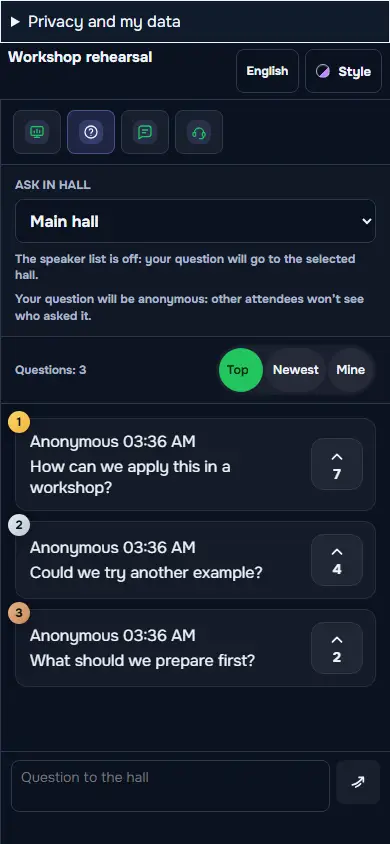
A participant writes and submits a question in the event. The phone is the entry point for the audience; it does not expose moderator controls.

Host and moderator

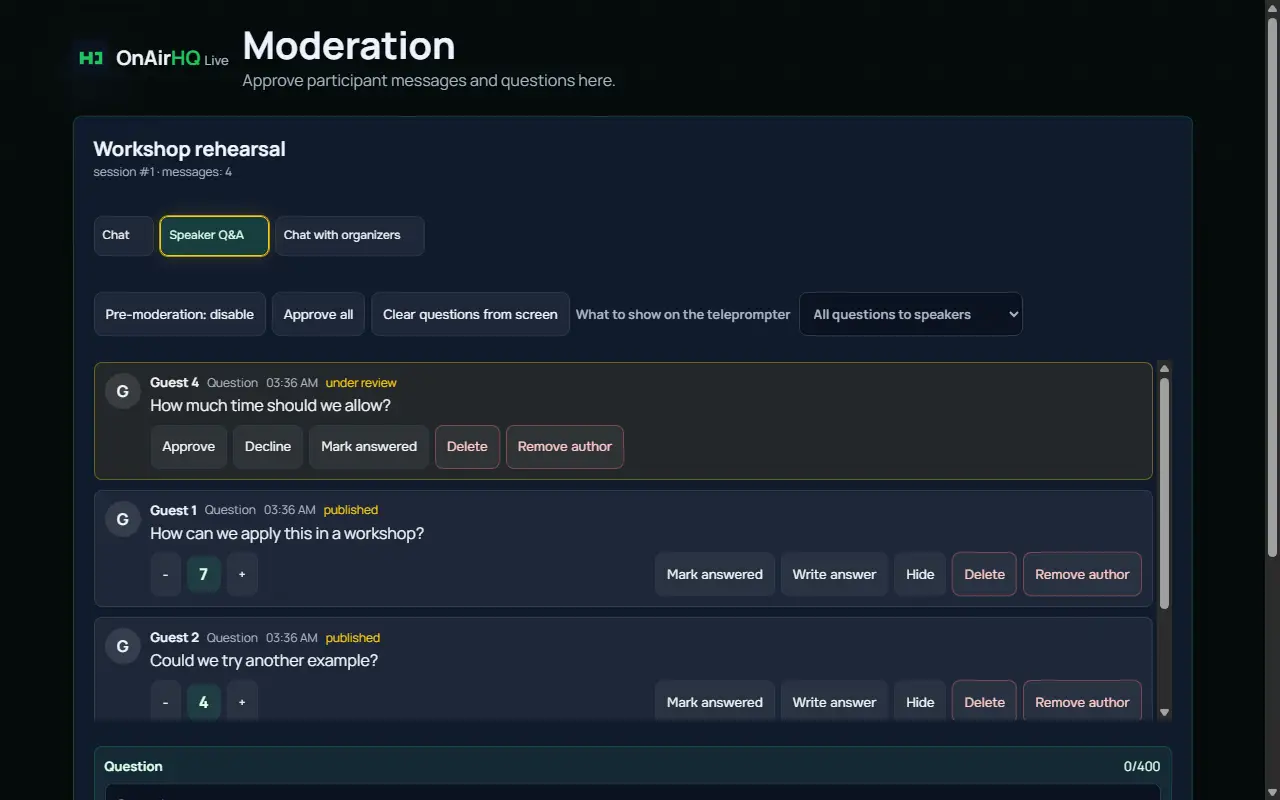
The moderator sees incoming messages and can review and approve questions. The host uses the chosen question to guide the speaker, with the private operating link kept off the room display.

Room screen

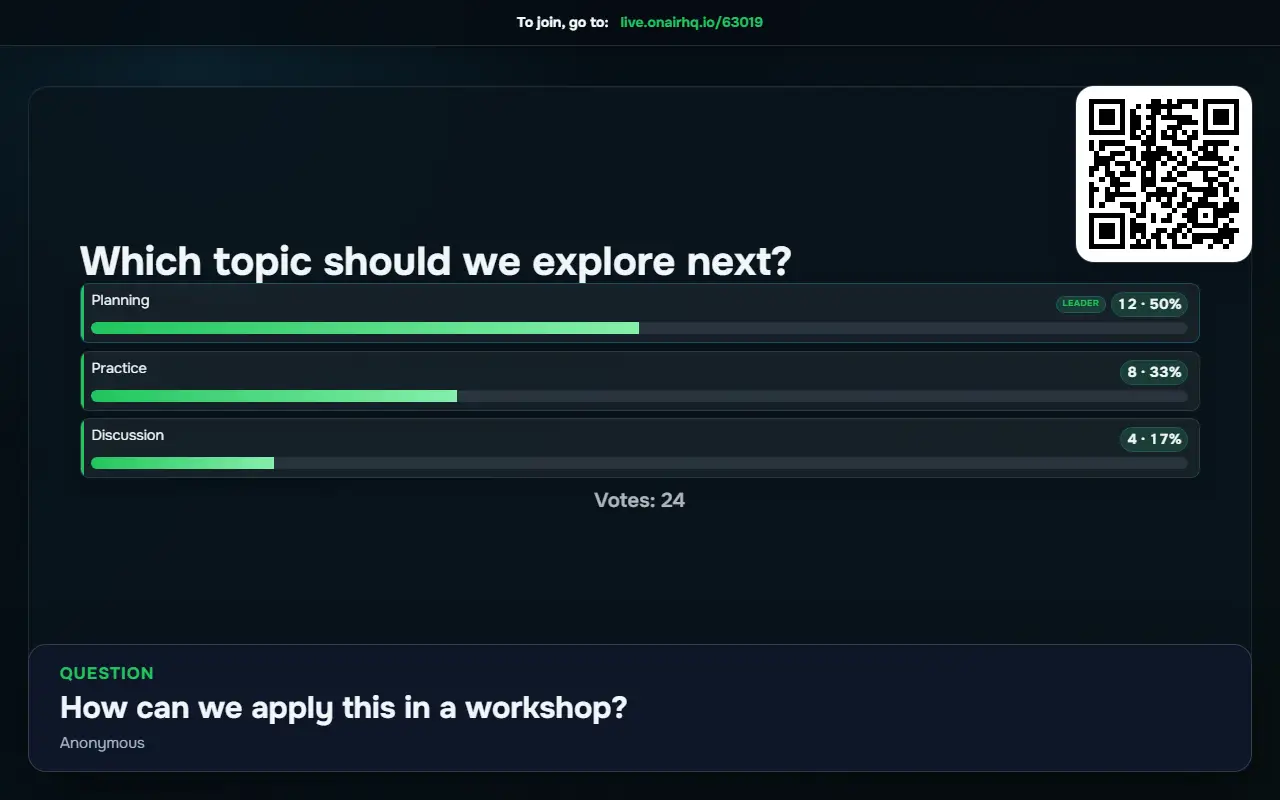
The selected public question can appear beside the session activity. The room sees the question being discussed, while pending messages remain part of the moderator’s workflow.

Inside the real product

Rehearsal with fictional event data.

Participant phone: A participant writes and submits a question in the event. The phone is the entry point for the audience; it does not expose moderator controls.
Participant phone
Host and moderator: The moderator sees incoming messages and can review and approve questions. The host uses the chosen question to guide the speaker, with the private operating link kept off the room display.
Host and moderator
Room screen: The selected public question can appear beside the session activity. The room sees the question being discussed, while pending messages remain part of the moderator’s workflow.
Room screen

Rehearse the audience journey

Run the activity with a phone that is separate from the host desk. Enter with the same code you will announce from the stage, check the active question and complete the participant action. Then look at the room display from where the audience will sit. This checks the whole journey rather than only the organizer’s preparation view.

Agree who will operate the desk and who will explain the activity aloud. Keep private operating links with that person and give guests the participant code. Test on the venue connection before the session, including the device used for projection. Leave a moment in the running order to explain joining and another to discuss the response.
Built by people who run live shows

OnAirHQ is made by a live-production team on air since 2011. These tools grew out of our own conferences and broadcasts.

A plan for your event

Free for smaller events. Paid plans are activated after payment.

Free

$0 USD

Create free account

No expiry

  • Up to 200 participants per event
  • All available Live modules

Event Pass

$149 $49 USD

Payments are final. Try Free first: all available Live modules for events of up to 200 participants. Refund policy

Charged in Russian rubles: 3 990 ₽. Your bank converts this amount into your card currency.

One event · 30 days

  • Up to 1000 participants across all halls
  • All available Live modules

Pro

$590 $249 USD

Payments are final. Try Free first: all available Live modules for events of up to 200 participants. Refund policy

Charged in Russian rubles: 20 490 ₽. Your bank converts this amount into your card currency.

Per year

  • All your events · up to 1000 participants each
  • All available Live modules

Launch prices are valid through 31 March 2027.

Customers who buy Pro at the launch price keep that price for renewals as long as their subscription remains uninterrupted.

Pricing

Before you run the activity

Will every submitted question appear on the screen?

With moderation enabled, submissions pass through the moderator’s review. Approve the questions you intend to show and rehearse the screen settings so the event team understands the publication flow.

Can someone other than the host review questions?

Yes. Use the moderator link for the person reviewing the queue. Treat that link as a private operating link and share the participant code separately.

Is this the same as the event chat?

Questions and general chat are separate event areas. Direct guests to the question area when the message is intended for the speaker, so the moderation queue stays useful.

Can I get a refund?

Payments for Event Pass and Pro are final. Please try OnAirHQ Live on Free before you buy: it includes all available Live modules for events of up to 200 participants, with no time limit and no card required.

We refund a payment only if:

  • you were charged more than once for the same purchase;
  • we could not activate the plan you paid for.

Mandatory consumer rights under applicable law are not affected.

To request a refund, email hello@onairhq.io with the payment number and date, the plan, and your account email or event link. An approved refund returns the full payment to the card you paid with. The time it takes to arrive depends on your bank.

Support

Email hello@onairhq.io. We reply within one business day.

Paid plan activation

We activate paid plans manually within 4 hours of payment, every day from 07:00 to 21:00 UTC. Payments made outside these hours are activated by 11:00 UTC. If your event is close, pay at least a day ahead or email us first.