OnAirHQ Live

An event quiz from the first answer to the leaderboard

Prepare scored questions, run them from the host desk and show the quiz leaderboard. A rehearsal guide for a quiz played on participants’ phones.

A quiz adds a sequence of choices and reveals to a live session. Write questions with an unambiguous correct answer, decide how to introduce the rules and rehearse the final standings. The host sets the pace; participants answer on their phones while the room screen gives the session a shared focus.

Run it at your event in three steps

1

Prepare questions and correct answers

Create scored question slides, add answer options and mark the correct choice. Read each question aloud during rehearsal. Check that the wording supplies everything needed to answer and that the explanation agrees with the configured correct option.

2

Run the round from the desk

Give guests the event code and show the first question when everyone is ready. Participants select answers in their browsers. Use the host controls to move through the prepared slides, leaving time to explain the question before closing responses.

3

Reveal and finish with standings

Close the answers before discussing the correct choice. Show the quiz results and leaderboard using the session controls. Explain the outcome to the room and check the final screen during rehearsal so the host knows how to end the round.

Choose the moment

A learning checkpoint

Ask questions about material covered in a workshop. Use the reveal to explain a difficult point rather than only announce a winner.

An opening icebreaker

Prepare a short round with familiar topics. Explain how to join before showing the first scored question.

A hosted quiz session

Build a sequence of scored slides and rehearse their order. Keep the final leaderboard as a deliberate end to the activity.

One activity, three views

Participant phone

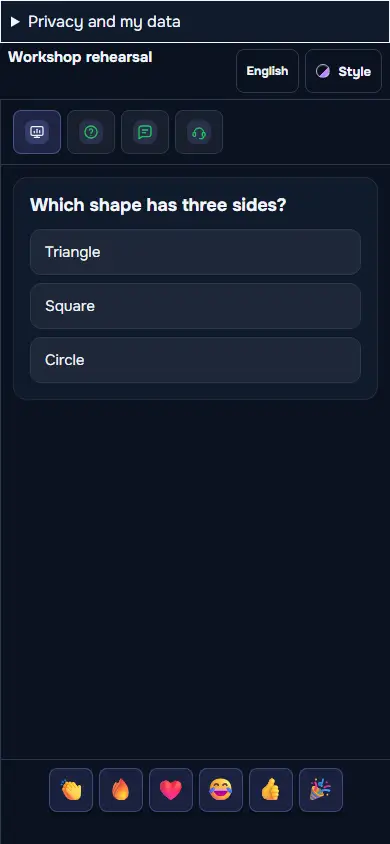
The current scored question and its answer choices appear in the interactive area. Participants submit their own answers; the shared screen is for following the round.

Host desk

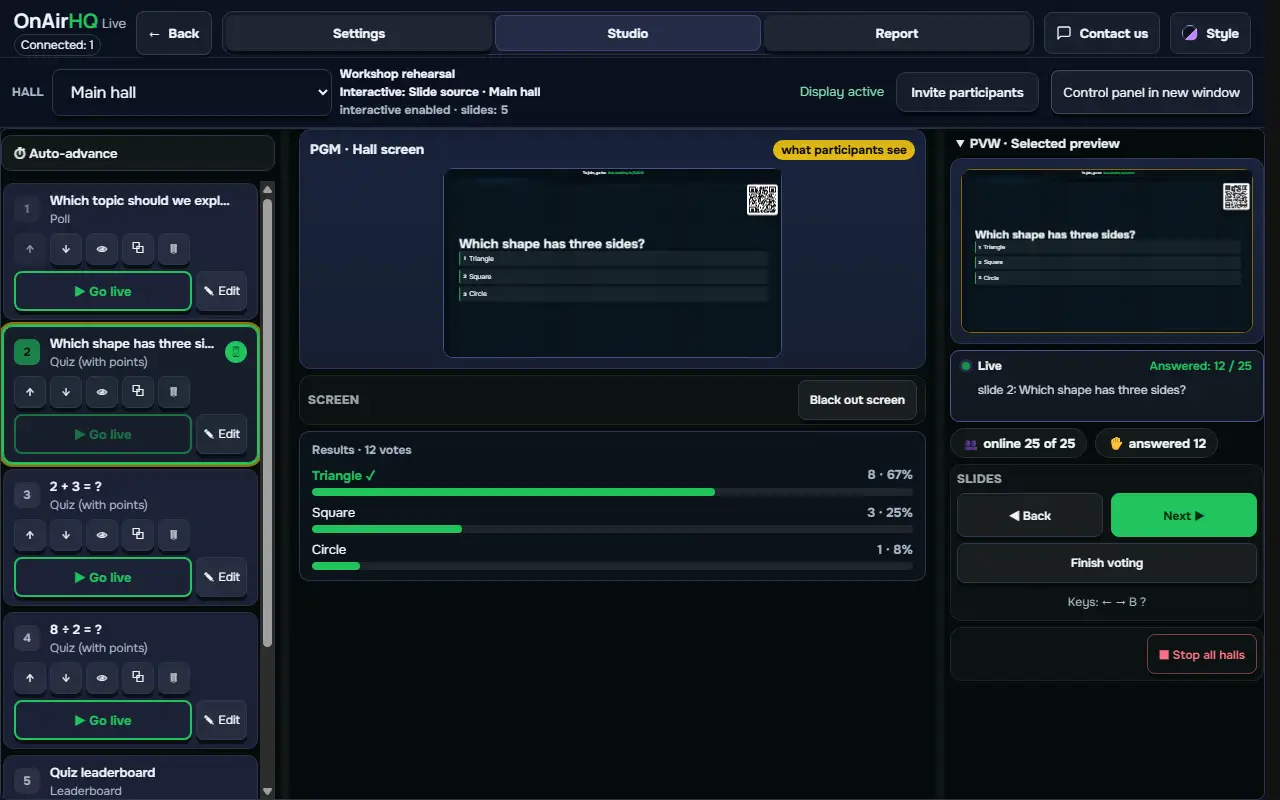
The host prepares the correct options, selects the active slide and controls the answer phase. Private operating controls stay with the host rather than on the participant page.

Room screen

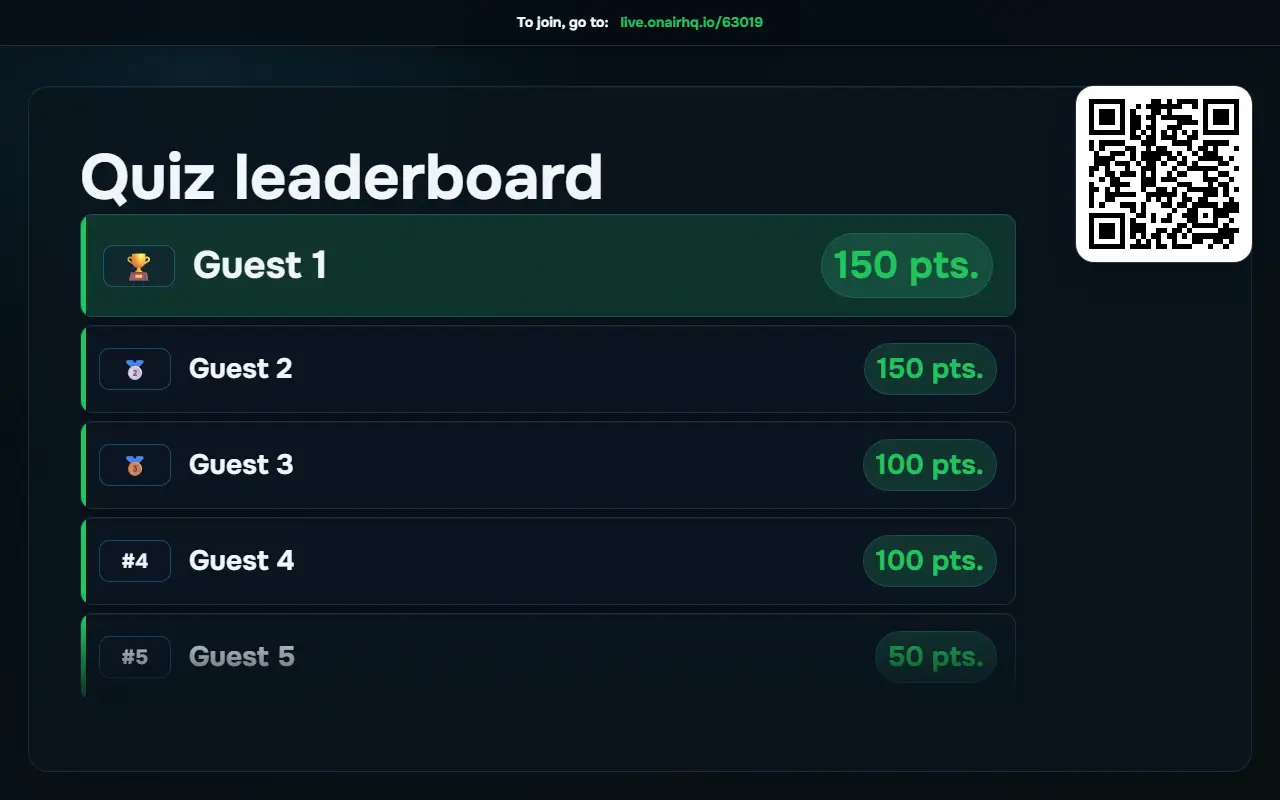
The display follows the selected question or results view. The leaderboard gives the audience a common view of the standings when the host chooses to show it.

Inside the real product

Rehearsal with fictional event data.

Participant phone: The current scored question and its answer choices appear in the interactive area. Participants submit their own answers; the shared screen is for following the round.
Participant phone
Host desk: The host prepares the correct options, selects the active slide and controls the answer phase. Private operating controls stay with the host rather than on the participant page.
Host desk
Room screen: The display follows the selected question or results view. The leaderboard gives the audience a common view of the standings when the host chooses to show it.
Room screen

Rehearse the audience journey

Run the activity with a phone that is separate from the host desk. Enter with the same code you will announce from the stage, check the active question and complete the participant action. Then look at the room display from where the audience will sit. This checks the whole journey rather than only the organizer’s preparation view.

Agree who will operate the desk and who will explain the activity aloud. Keep private operating links with that person and give guests the participant code. Test on the venue connection before the session, including the device used for projection. Leave a moment in the running order to explain joining and another to discuss the response.
Built by people who run live shows

OnAirHQ is made by a live-production team on air since 2011. These tools grew out of our own conferences and broadcasts.

A plan for your event

Free for smaller events. Paid plans are activated after payment.

Free

$0 USD

Create free account

No expiry

  • Up to 200 participants per event
  • All available Live modules

Event Pass

$149 $49 USD

Payments are final. Try Free first: all available Live modules for events of up to 200 participants. Refund policy

Charged in Russian rubles: 3 990 ₽. Your bank converts this amount into your card currency.

One event · 30 days

  • Up to 1000 participants across all halls
  • All available Live modules

Pro

$590 $249 USD

Payments are final. Try Free first: all available Live modules for events of up to 200 participants. Refund policy

Charged in Russian rubles: 20 490 ₽. Your bank converts this amount into your card currency.

Per year

  • All your events · up to 1000 participants each
  • All available Live modules

Launch prices are valid through 31 March 2027.

Customers who buy Pro at the launch price keep that price for renewals as long as their subscription remains uninterrupted.

Pricing

Before you run the activity

What makes a quiz question different from a poll?

A scored question has configured correct answers and awards points. A poll collects choices without a correct-answer reveal. Choose the slide type that matches the purpose of the activity.

Can a question have more than one correct option?

Yes. Choose “Most accurate” in the scored quiz slide types. Add at least three answer options and mark each correct option in the slide editor, leaving at least one incorrect option. Participants can then select several answers. A standard scored question has one correct option.

Do participants answer from the room screen?

No. They answer from the event on their phones. The room screen presents the shared activity and results; give participants the entry code before starting the first question.

Can I get a refund?

Payments for Event Pass and Pro are final. Please try OnAirHQ Live on Free before you buy: it includes all available Live modules for events of up to 200 participants, with no time limit and no card required.

We refund a payment only if:

  • you were charged more than once for the same purchase;
  • we could not activate the plan you paid for.

Mandatory consumer rights under applicable law are not affected.

To request a refund, email hello@onairhq.io with the payment number and date, the plan, and your account email or event link. An approved refund returns the full payment to the card you paid with. The time it takes to arrive depends on your bank.

Support

Email hello@onairhq.io. We reply within one business day.

Paid plan activation

We activate paid plans manually within 4 hours of payment, every day from 07:00 to 21:00 UTC. Payments made outside these hours are activated by 11:00 UTC. If your event is close, pay at least a day ahead or email us first.